
Hacking the registry allows you to tweak many things in Windows, such as the adding and removing items from the context menu, enabling and disabling Windows features, customizing the Control Panel, and many other items.
We have documented a large collection of registry hacks and here is a list of 20 of the best hacks.
NOTE: If you are not comfortable making changes to the registry, you should not do so. In any case, before hacking your registry, be sure you back it up. We also recommend creating a restore point you can use to restore your system if something goes wrong.
Add the Registry Editor to the Control Panel
 The
first hack we will show you is one that might be useful when applying
the rest of the hacks in this article. Instead of using the Search box
on the Start menu every time you want to access the registry, you can do
so using an icon in the Control Panel.
The
first hack we will show you is one that might be useful when applying
the rest of the hacks in this article. Instead of using the Search box
on the Start menu every time you want to access the registry, you can do
so using an icon in the Control Panel.The following article shows you a registry hack that adds the registry editor as another option in the Control Panel. This hack works for any version of Windows.
How to Add Registry Editor to Control Panel
Add Any Application to the Windows Desktop Right-Click Menu

If you like a clean desktop, you can add applications to your right-click menu for quick and easy access and avoid adding icons to your desktop.
Here is a registry hack that shows you how to add an application to the right-click menu using Notepad as an example.
How to Add Any Application to the Windows Desktop Right-Click Menu
Add “Open with Notepad” to the Context Menu for All Files
 Speaking
of Notepad, we covered a registry hack that allows you to add an “Open
with Notepad” option to the context menu for all files.
Speaking
of Notepad, we covered a registry hack that allows you to add an “Open
with Notepad” option to the context menu for all files.This hack allows you to open unknown files without having to go through a large list of known applications.
Add “Open with Notepad” to the Context Menu for All Files
Clean Up Your Cluttered Windows Context Menu
 Some
applications you install add options to the Windows context menu,
making it cluttered over time. You end up with a long context menu, most
of which you probably don’t use, and you have to search for the options
you really use.
Some
applications you install add options to the Windows context menu,
making it cluttered over time. You end up with a long context menu, most
of which you probably don’t use, and you have to search for the options
you really use.The following article explains where in the registry you can find the keys that control these menu items, how to disable them by editing the registry manually, and also an easy way to clean up the menu items using a couple of free tools.
How to Clean Up Your Messy Windows Context Menu
Disable Aero Shake in Windows 7
 One
of the useful features that is new to Windows 7 is the Aero Shake
feature. This allows you to grab a window by its title bar and shake it
back and forth to minimize all other open windows. It’s a cool feature,
but if you want to disable it, there is a solution.
One
of the useful features that is new to Windows 7 is the Aero Shake
feature. This allows you to grab a window by its title bar and shake it
back and forth to minimize all other open windows. It’s a cool feature,
but if you want to disable it, there is a solution.The following article shows you a simple registry hack that allows you to disable Aero Shake.
Disable Aero Shake in Windows 7
Disable All Notification Balloons in Windows 7 or Vista
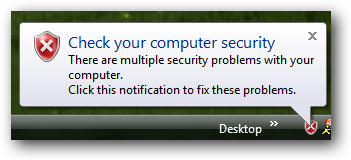 Windows
and applications just love to popup notifications for all kinds of
things, like Windows Updates, security issues, unused desktop icons,
completion of a task, among other things. If you find these
notifications annoying, you can completely disable them.
Windows
and applications just love to popup notifications for all kinds of
things, like Windows Updates, security issues, unused desktop icons,
completion of a task, among other things. If you find these
notifications annoying, you can completely disable them.Turning them off completely is rather extreme. Typically, you can turn them off within the application generating the message. However, if you want to turn them all off in one go, here is an article that shows you how.
NOTE: If you turn off all notifications, be sure to remember to do things like update Windows, update your anti-virus software and other critical software programs.
Disable All Notification Balloons in Windows 7 or Vista
Remove the “Shortcut” Text from New Shortcuts in Windows 7 or Vista
 Every
time you create a shortcut in Windows 7, “ – Shortcut” is added to the
end of the name of the shortcut. This can get very annoying when you
have to delete that text every time because you don’t want it. In
Windows XP, every shortcut was predicated with “Shortcut to “ as well.
Every
time you create a shortcut in Windows 7, “ – Shortcut” is added to the
end of the name of the shortcut. This can get very annoying when you
have to delete that text every time because you don’t want it. In
Windows XP, every shortcut was predicated with “Shortcut to “ as well.The following article shows you a registry hack that allows you to remove that extra text. This registry hack is from the Windows XP days, but also works in Windows 7 and Vista.
Remove “Shortcut” Text From New Shortcuts in Windows 7 or Vista
Add Google Documents to the Windows Explorer “New” Context Menu
 Do
you create a lot of documents in Google Docs? We’ve already covered how
to create new Google Docs easily. However, wouldn’t it be great if
there was an option on the “New” context menu in Windows Explorer for
quick and easy access?
Do
you create a lot of documents in Google Docs? We’ve already covered how
to create new Google Docs easily. However, wouldn’t it be great if
there was an option on the “New” context menu in Windows Explorer for
quick and easy access?The following is a hack to add an option to create a new Google Document to the “New” context menu. It should work for all versions of Windows.
How to Add Google Documents to the Windows Explorer “New” Menu
Change the Registered Owner in Windows
 If
you have received a used computer from someone else or you are
preparing to give a computer to someone else, you probably want to
change the registered owner.
If
you have received a used computer from someone else or you are
preparing to give a computer to someone else, you probably want to
change the registered owner.To view the registered owner and organization, type winver.exe into the Search box on the Start menu. The following article shows you how to change the registered owner and organization in the registry.
Quick Tip: Change the Registered Owner in Windows
Restore Previous Versions of the Registry in Windows 7
 If you want to restore a specific part of the registry manually from a System Restore snapshot or specific keys from a version of the registry you backed up,
you can export sections from the backup files without having to a full
System Restore. The following article shows you how to do this:
If you want to restore a specific part of the registry manually from a System Restore snapshot or specific keys from a version of the registry you backed up,
you can export sections from the backup files without having to a full
System Restore. The following article shows you how to do this:How to Restore Previous Versions of the Registry in Windows 7
Prevent Windows Update from Forcibly Rebooting Your Computer
 You’ve
probably seen the dialog box prompting you to reboot your computer to
finish installing important updates when you were very busy and could
not reboot. It’s probably designed to pop up when we are the most busy.
You’ve
probably seen the dialog box prompting you to reboot your computer to
finish installing important updates when you were very busy and could
not reboot. It’s probably designed to pop up when we are the most busy.However, there are a couple of ways that you can disable this behavior. The prompt will still display, but you won’t be forced to shut down your computer. The following article explains how to do it.
Prevent Windows Update from Forcibly Rebooting Your Computer
Remove or Hide Unwanted Items from the Control Panel in Windows 7
 Are
there icons you will never use in the Control Panel that just sit there
and clutter it up? Would you like to hide or remove these icons? The
following article shows you how to remove unwanted or unneeded items
from the Control Panel in Windows 7.
Are
there icons you will never use in the Control Panel that just sit there
and clutter it up? Would you like to hide or remove these icons? The
following article shows you how to remove unwanted or unneeded items
from the Control Panel in Windows 7.NOTE: Some items may not be able to be deleted if it’s a Windows system file or a file currently in use. You could use a program like Unlocker, but these items can be hidden by tweaking the registry.
Remove or Hide Unwanted Items From the Control Panel in Windows 7
Add Control Panel to the Desktop Right-Click Menu
 While
we’re on the subject of the Control Panel, you can access the Control
Panel easily from the right-click menu on the desktop or in Windows
Explorer using a registry hack.
While
we’re on the subject of the Control Panel, you can access the Control
Panel easily from the right-click menu on the desktop or in Windows
Explorer using a registry hack.The following article describes the manual method for adding the Control Panel to the right-click menu and provides a registry file to easily apply the hack. The article talks about applying this hack in Windows Vista. However, this hack also works in Windows 7.
Add Control Panel to the Desktop Right-Click Menu in Vista
Make the Taskbar Buttons Switch to the Last Active Window in Windows 7
 The
Windows 7 Aero Peek feature allows you to view live thumbnails of every
window for the programs on the Taskbar. Clicking these thumbnails
accesses the different windows for each program. However, sometimes you
may want to click the icon for a program on the taskbar to open the last
accessed window for that program.
The
Windows 7 Aero Peek feature allows you to view live thumbnails of every
window for the programs on the Taskbar. Clicking these thumbnails
accesses the different windows for each program. However, sometimes you
may want to click the icon for a program on the taskbar to open the last
accessed window for that program.The following article shows you how to hack the registry to change the Taskbar icon behavior.
Make the Taskbar Buttons Switch to the Last Active Window in Windows 7
Make “Open Command Prompt Here” Always Display for Folders in Windows
 We’ve
previously shown you how to open a command prompt at the current
directory by holding the Shift key down and right-clicking on a folder
or the desktop. However, you can avoid having to press the Shift key
with a simple registry hack. The following article explains how to do
this:
We’ve
previously shown you how to open a command prompt at the current
directory by holding the Shift key down and right-clicking on a folder
or the desktop. However, you can avoid having to press the Shift key
with a simple registry hack. The following article explains how to do
this:Make “Command Prompt Here” Always Display for Folders in Windows
Add Encrypt/Decrypt Options to the Right-Click Menu
 Do
you use the built-in file encryption feature in Windows 7 often? If so,
we have a registry hack that will add an option to the right-click menu
to easily encrypt and decrypt your files. This is quicker and easier
than using the File Properties dialog box.
Do
you use the built-in file encryption feature in Windows 7 often? If so,
we have a registry hack that will add an option to the right-click menu
to easily encrypt and decrypt your files. This is quicker and easier
than using the File Properties dialog box.The following article described the simple method of adding a single registry key to add this option.
Add Encrypt / Decrypt Options to Windows 7 / Vista Right-Click Menu
Add Defragment to the Right-Click Menu for a Drive
 If
you use the Defragment feature in Windows often, you can easily add the
Defragment option to the right-click menu for a specific drive.
If
you use the Defragment feature in Windows often, you can easily add the
Defragment option to the right-click menu for a specific drive.The following article describes how to manually apply the hack and also provides a registry file you can download to easily apply the hack.
Add Defragment to the Right-Click Menu for a Drive
Show the Classic “All Programs” Menu in the Start Menu in Windows 7

If you must use Windows 7, but you prefer the classic Start menu from Windows XP. Here is a registry hack that brings back the classic “All Programs” menu.
It may not be quite the same as using Windows XP, but if you want the familiar “All Programs” menu back, this registry hack will work for you without requiring you to install third-party software.
Show the Classic “All Programs” Menu in the Start Menu in Windows 7
Add the Recycle Bin to “My Computer”

If you spend a lot of time using the My Computer window, it might be handy to have access to the Recycle Bin from that window. You may not have thought about it before, but we covered how to do this using a simple registry hack, anyway.
The following article covers how to manually hack the registry, but also provides a registry file allowing you to quickly apply the registry hack.
How To Add Recycle Bin to “My Computer” in Windows 7 or Vista
Remove Programs from the Open With Menu in Windows Explorer
 As
you install programs in Windows, the Open With menu in Windows Explorer
gets more cluttered. Would you like to clean up this menu? There is a
simple registry hack that can remove programs you don’t want on the
menu.
As
you install programs in Windows, the Open With menu in Windows Explorer
gets more cluttered. Would you like to clean up this menu? There is a
simple registry hack that can remove programs you don’t want on the
menu.This simple trick helps you keep your Open With menu tidy and works in any version of Windows.
Remove Programs from the Open With Menu in Explorer
We hope you find these registry hacks useful for improving your experience and productivity in Windows.


0 komentar:
Posting Komentar